Quick Start Guide
In this Quick Start Guide we'll show how to connect the 2D Barcode Scanner - V2 to a computer over USB, operate it as a COM device to scan barcodes and print out the scanned codes to a serial terminal. This guide assumes users know how to interact with a COM device using a serial terminal. If you're unfamiliar with using serial terminals or would prefer to use the
USB Assembly
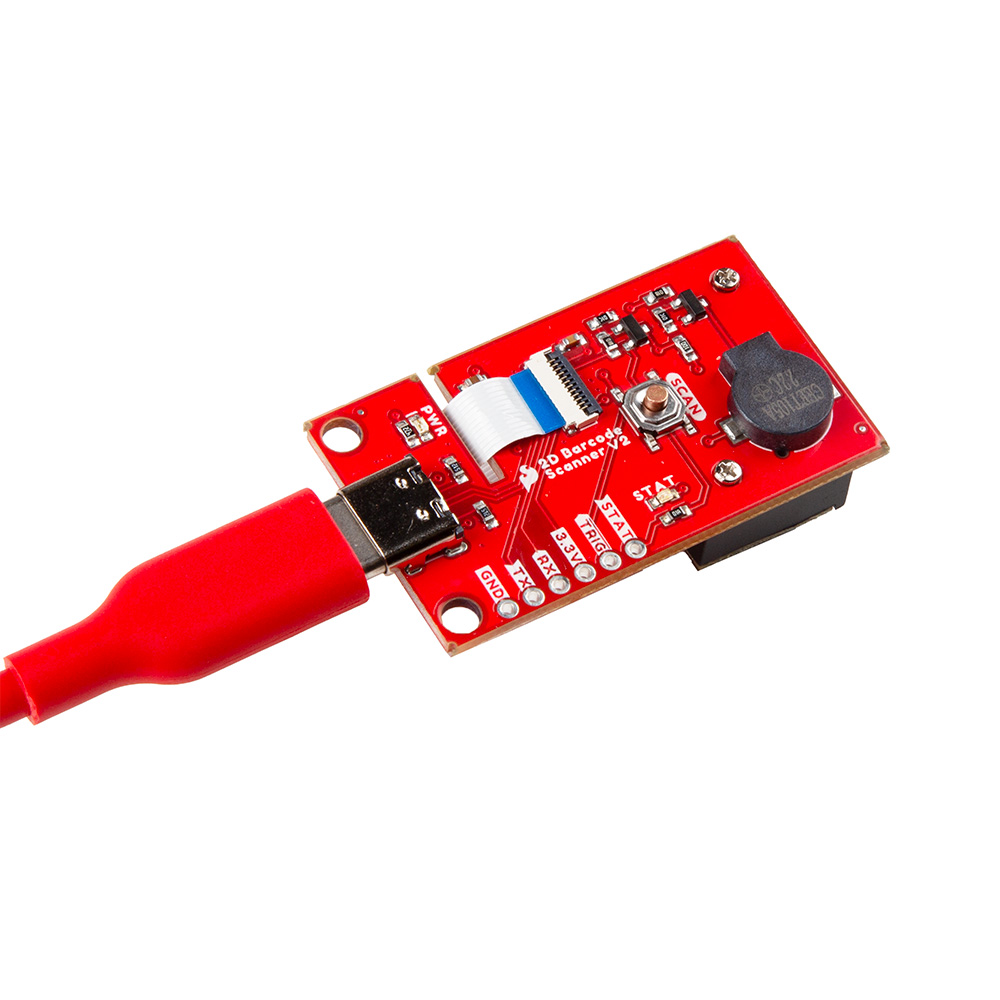
Start by connecting the Barcode Scanner Breakout to a computer with a USB-C cable.
Next, find scan the USB-COM Mode barcode from the Scan Settings Manual (the DE2290 defaults to USB-Keyboard mode) on page 35 or you can scan it directly below:

The DE2290 defaults to operate in Trigger Mode to scan barcodes so you'll need to press the trigger button to initiate a scan. Once the DE2290 is in USB-COM mode, your computer should automatically download and install the device's driver if needed.
Serial Terminal Scanning
With the drivers installed and the Barcode Scanner Breakout in USB-COM mode, open a serial terminal of your choice like TeraTerm to the COM port with the baud set to 115200.
The DE2290 defaults to operate in Trigger Mode to scan barcodes so you'll need to press the trigger button for each scan. Find some barcodes to scan or if you don't have any readily available, you can generate custom codes from all types of symbologies on this website to make sure the barcode scanner is working properly.