Button Operation
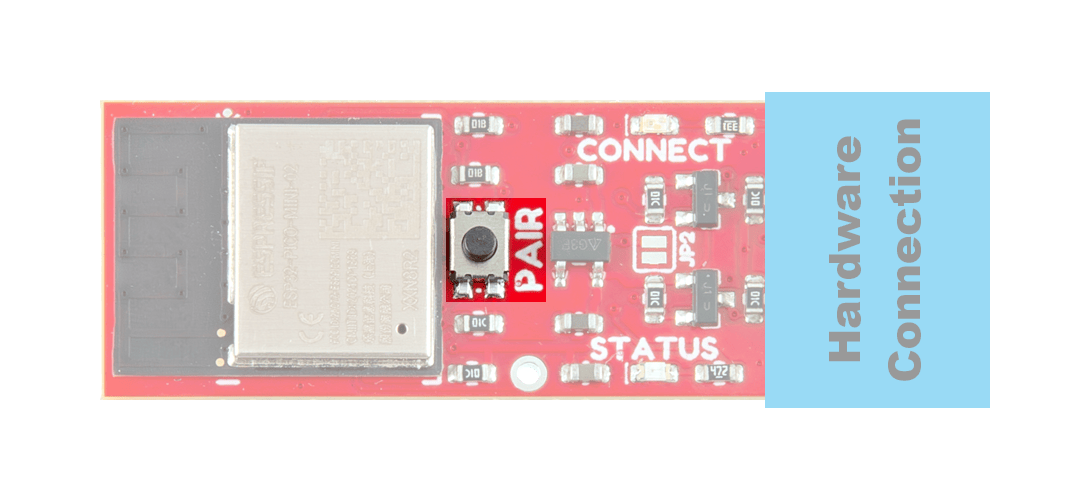
PAIR Button on the BlueSMiRF v2.
The PAIR button on the BlueSMiRF v2 is used to enter a few different states:
- Discoverable Mode
- A default state, where the device is ready to be paired with a Bluetooth device.
- BlueSMiRF Pairing Mode
- Used to pair the BlueSMiRF v2 with another BlueSMiRF v2 in the (default) discoverable mode.
- Bootloader Mode
- Used to manually update the firmware through the UART interface.
- Factory Reset
- Forces the BlueSMiRF v2 to return to its original factory settings. Then, it returns to the (default) discoverable mode.
Create a Serial Link
In its default configuration, users can simply scan for and connect to the BlueSMiRF v2, from their phone or a laptop using a Bluetooth connection. However, for a serial bridge between two BlueSMiRF v2 boards, one board needs to be in discoverable mode, before the other device enters pairing mode and creates their connection.
- Device 1: By default, the device be in discoverable mode and be available for pairing.
- Device 1 will broadcast the name
BlueSMiRF-Pairingand wait for an incoming connection.
- Device 1 will broadcast the name
- Device 2: Hold the PAIR button for 4 to 8 seconds, then release.
- Device 2: Will then enter pairing mode and scan for any compatible devices to pair with.
- The scan should find that Device 1 is in discoverable mode broadcasting the
BlueSMiRF-Pairingname.
- The scan should find that Device 1 is in discoverable mode broadcasting the
- Device 2: Connects to Device 1
- Device 2 stores the MAC address of Device 1
- Whenever Device 2 boots up, it will always try to connect to the stored the MAC address (i.e. Device 1).
- Device 1: Remains agnostic of any connections or pairing; no MAC address has been stored on it.
- When Device 1 boots, it will not attempt to connect to any devices.
Note
The BlueSMiRF that was detected (Device 1), does not store the MAC address of the pairing BlueSMiRF (Device 2). Upon restart, the BlueSMiRF (Device 1) will return to the (default) discoverable mode.
Discoverable Mode
A default state, where the device will broadcast the name BlueSMiRF-Pairing, blink the Connect LED slowly, and wait for an incoming connection.
To enter discoverable mode:
- With no other BlueSMiRF devices in discoverable mode, hold the PAIR button down
- Wait (~4-8 seconds) until the
StatusandConnectLEDs to slowly blink back and forth - Release the PAIR button
- The BlueSMiRF v2 will enter pairing mode and scan for available devices it can connect to
- After a few seconds, if it has failed to connect with another device, the board will return to its discoverable mode
- In this mode, the
ConnectLED will slowly blink
- In this mode, the
Note
When the BlueSMiRF's connection is paired by another device, it does not store the MAC address of the connecting device; nor will it attempt to restore that connection upon restart.
BlueSMiRF Pairing Mode
Pairing mode is used to scan and connect to other BlueSMiRF v2 devices in discoverable mode.
GIF Setting BlueSMiRF v2 in Pairing Mode
To enter pairing mode:
- Hold the PAIR button down
- Wait (~4-8 seconds) until the
StatusandConnectLEDs to slowly blink back and forth - Release the PAIR button
Once a BlueSMiRF has entered pairing mode, it will scan for other compatible BlueSMiRF devices broadcasting the BlueSMiRF-Pairing name. If a device is detected, it will connect to the device and store the MAC address of the located device so that it can reconnect to the same device in the future. Otherwise, if no device is found after a few seconds, the BlueSMiRF will return to its discoverable mode.
Bootloader Mode
Hold down the PAIR button while the BlueSMiRF v2 is not powered. Applying power will set the microcontroller to bootloader mode; the STATUS LED should also be dimmed. After uploading the firmware binaries to the ESP32, you will need to cycle power to the device, as it does not automatically hard reset.
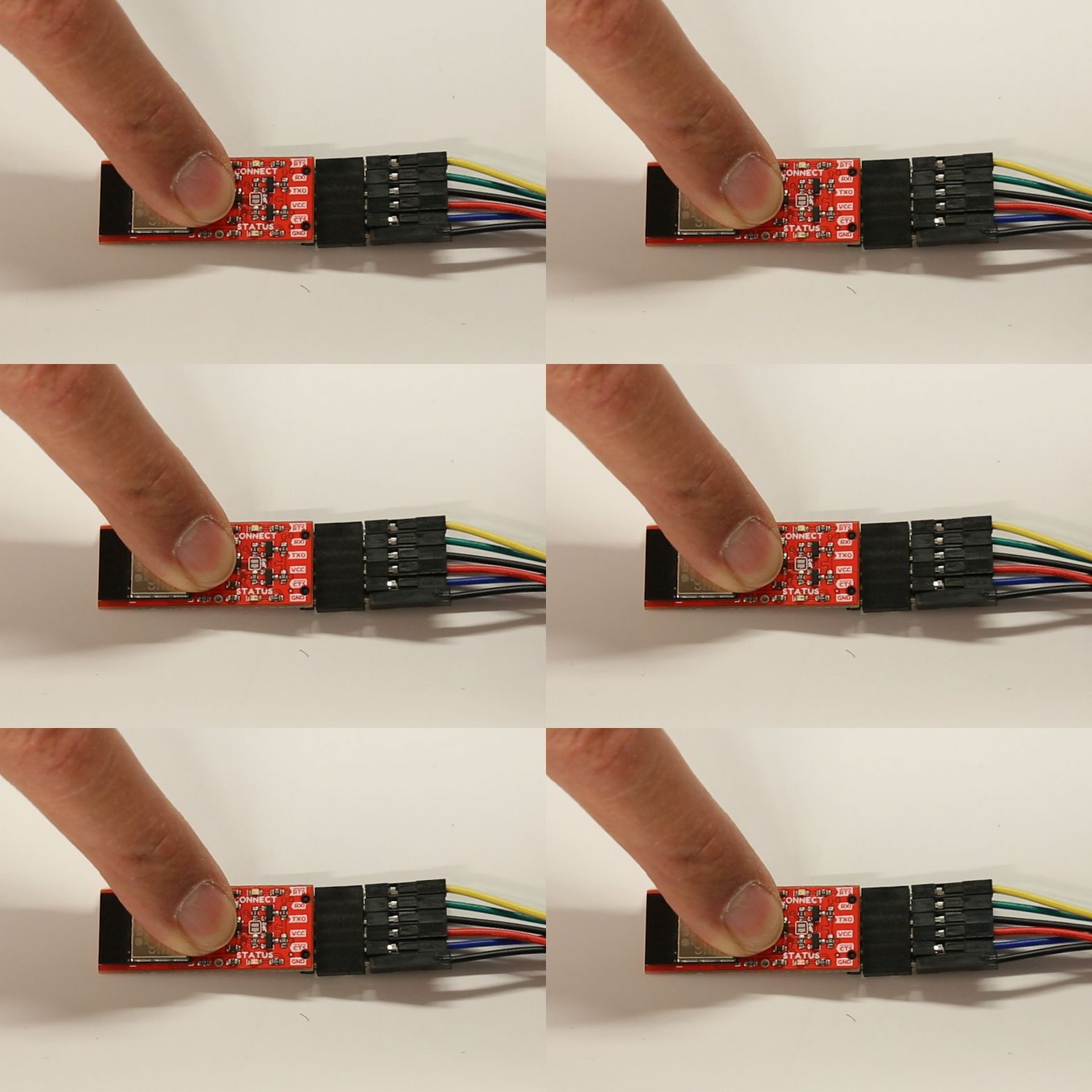
GIF Setting the BlueSMiRF in Bootloader Mode
Tip
To automatically enable a hard reset, users can connect the DTR pin of USB-to-serial converter to the RST PTH pad of the BlueSMiRF with a IC Hook with Pigtail.
Factory Reset
Holding the PAIR button for more than 8 seconds will cause the Status and Connect LEDs to quickly blink back and forth. If the PAIR button is released at this time, the device settings will be restored to their factory defaults.
GIF Factory Reset