Azure
Creating and Connecting to an Azure IoT Device
One of the key features of the DataLogger IoT is it's simplified access to IoT service providers. This document outlines how an Azure IoT device is used by the DataLogger IoT.
The following is covered by this document:
- Device creation Azure
- Securely connecting the device
- How data is posted from the DataLogger IoT to the Azure Device
Currently, the Azure IoT device connection is a single direction - it is used to post data from the hardware to the Azure IoT Device. Configuration information from Azure IoT to the DataLogger IoT is currently not implemented.
General Operation
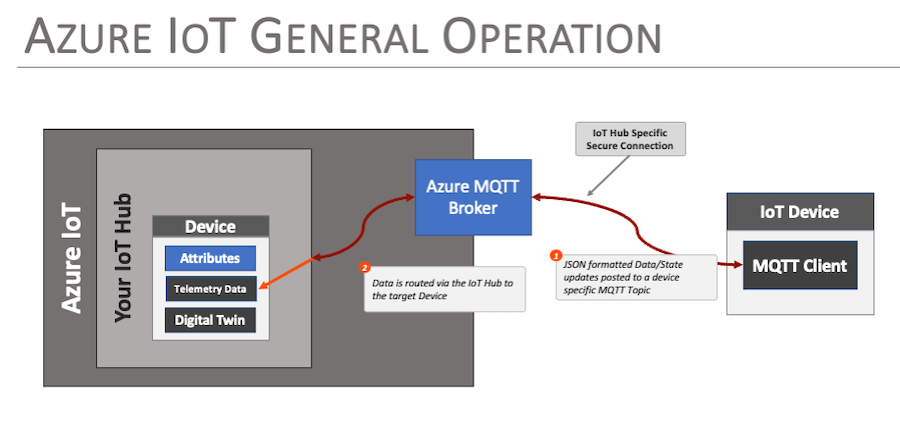
Azure IoT enables connectivity between an IoT / Edge device and the Azure Cloud Platform, implementing secure endpoints and device models within the Azure infrastructure. This infrastructure allows edge devices to post updates, status and state to the Azure infrastructure for analytics, monitoring and reporting.
In Azure IoT, an virtual representation of an actual device is created and referred to as a Device. The virtual device is allocated a connection endpoint, security certificates and a device digital twin - a JSON document used to persist, communicate and manage device state within Azure. Unlike AWS IoT, data from the device isn't posted to the devices digital twin (AWS Shadow), but to the device directly.
The actual IoT device communicates with it's Azure representation via a secure MQTT connection, posting JSON document payloads to a set of pre-defined topics. Updates are posted directly to the Azure device, which is then accessed within Azure for further process as defined by the users particular cloud implementation.
Creating a Device in Azure IoT
The following discussion outlines the basic steps taken to create a Device in Azure IoT that the DataLogger IoT can connect to. First step is to log into your Azure account and create an IoT Hub for your device.
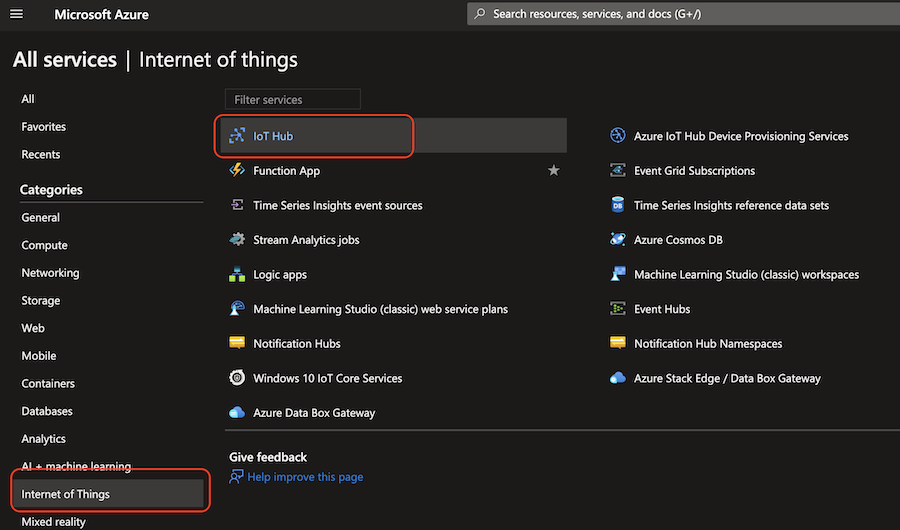
Once logged into your Microsoft Azure account, select Internet of Things > IoT Hub from the menu of services.
Create an IoT Hub
This IoT Hub page lists all the IoT hubs available for your account. To add a device, you need to create a new IoT Hub.
Follow the Hub Creation workflow - key settings used for a DataLogger demo device:
- Used the "Free Tier" for testing and development.
- Networking
- Connectivity - Public Access
- Minimum TLS Version - 1.0
The remaining settings were set at their default values.
Create a Device
Once the IoT Hub is created, a Device needs to be created within the hub. The device represents the connection to the actual DataLogger IoT device.
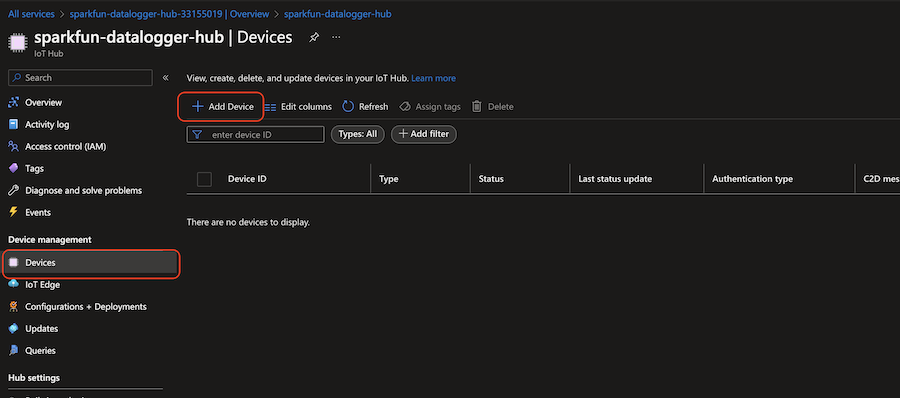
To create a device, select the Device management > Devices from the IoT Hub menu and the select the + Add Device menu item
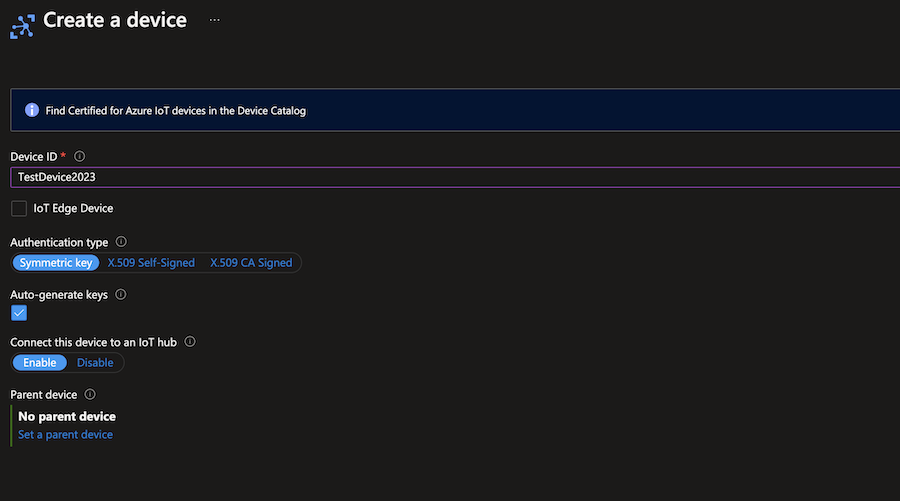
In the create device dialog:
- Enter a name for the device
- Select an Authentication type of Symmetric key
- Auto-generate keys enabled
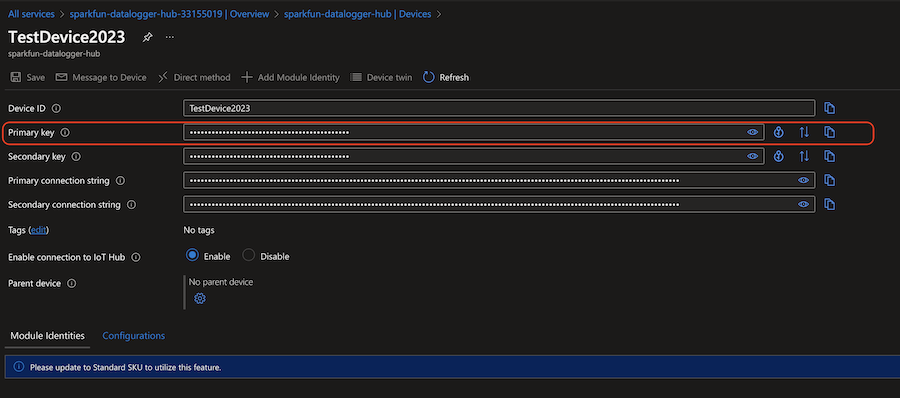
Once created, the device is listed in the Devices list of the IoT Hub. Selecting the device gives you the device ID and keys used to communicate with the device. Note, when connecting to the device with the DataLogger IoT, the Primary Key value is used.
Azure Configuration
Once the DataLogger IoT is integrated into the application, the specifics for the Azure IoT Thing must be configured. This includes the following:
- Server Name/Hostname
- Device Key
- Device ID
- CA Certificate Chain
Server Name/Hostname
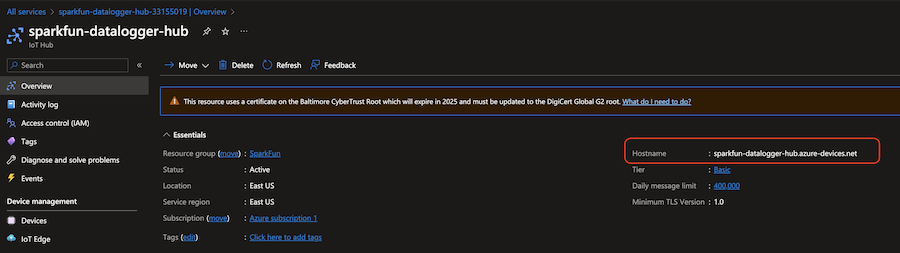
This value is hostname of the created IoT Hub and is obtained from the Overview page of the IoT Hub. Note a secure connection is used, so the port for the connection is 8883.
Device ID
The Device ID is obtained from the device detail page. This page is accessible via the Device listing page, which is accessed via the Device management > Devices menu item. The selected device of interest (TestDevice2023 for this example) provides the device ID and Primary Key.
Device Primary Key
This is obtained via the Device details page, as outlined in the previous section.
You view and copy the key via the icons on the right of the key entry line.
Root Certificate Authority - CA file
The Certificate Authority file for Azure is downloaded from this page:
Microsoft: Azure Certificate Authority Details
The file to download is the DigiCert Global Root G2 entry in the Root Certificate Authorities section of the page.
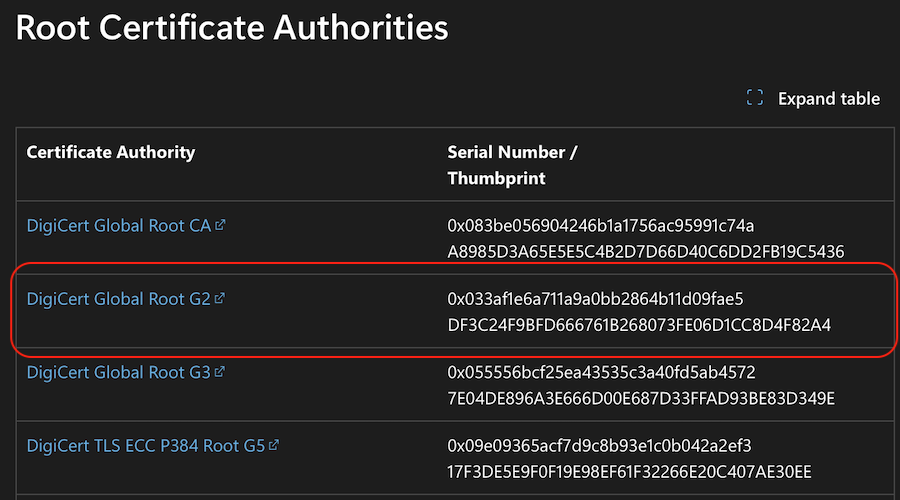
The CA file is in a binary format and requires conversion to a standard pem format (which starts with -----BEGIN CERTIFICATE----- to use by the DataLogger's Azure driver.
To convert the file, the following command is used at the command line of systems with openssl installed
openssl x509 -inform DER -in yourcert.crt -out yourcert.pem
Copy the file yourcert.pem to an SD card, insert the SD card into the Datalogger and enter the filename yourcert.pen in the Azure preferences, or use the JSON file mentioned in the following section.
Setting Properties
The above property values must be set on the DataLogger IoT before use. They can be set manually by using the menu system like the previous MQTT example.
For users that are interested in using the menu system, you will need to open a Serial Terminal, connect to the COM port that your DataLogger enumerated to, and set it to 115200 baud. In this case, we connected to COM13. Press any key to enter the Main Menu. Type 1 to enter the Settings menu. Then type 13 to enter the Azure IoT Menu. When the menu system for the Azure IoT connection is presented, you will need to configure the property values as listed in the JSON file. Saving the values through the menu system will save the credentials to the ESP32's persistent memory. The following options are displayed:
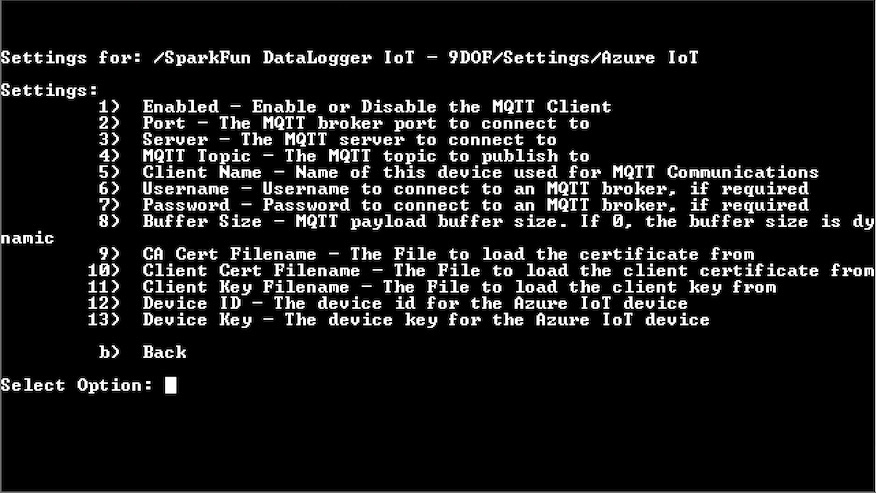
The alternative to using the menu system is a JSON file. These values can be set using a JSON file that is loaded by the system at startup. For the example outlined in this document, the entries in the settings JSON file are as follows:
"Azure IoT": {
    "Enabled": true,
    "Port": 8883,
    "Server": "sparkfun-datalogger-hub.azure-devices.net",
    "MQTT Topic": "",
    "Client Name": "",
    "Buffer Size": 0,
    "Username": "",
    "Password": "",
    "Device Key" : "My-Super-Secret-Device-Key",
    "Device ID"  : "TestDevice2023",
    "CA Cert Filename": "AzureRootCA.pem"
  },
Besides updating the Server, Device Key, Device ID, and CA Cert Filename, you will need to also ensure that the port is set to 8883. The default in previous firmware versions was 1883. As of firmware v01.00.04, the default is 8883. You will need to adjust the port value to properly connect to the Azure IoT service. Don't forget to enable Azure IoT service by setting the value to true. If the JSON file is saved in the microSD card, you can load the credentials to the DataLogger IoT.
To load the values by the system at startup using a JSON file and microSD card, you will need to configure the Save Settings. This JSON file will be created with the "Save to Fallback" option. Make sure to enable the Azure IoT as well.
Operation and Monitoring
Once the DataLogger IoT device is configured and running, the Azure IoT capability in the DataLogger IoT posts messages via MQTT to the connected Azure Device via it's IoT Hub. Messages to the device are posted as Telemetry Data for the device.
Connect to Your Azure IoT Hub
To validate that the DataLoggerIot is communicating with your Azure IoT Hub and the associated devices, several methods are available. All these methods read and post the messages or 'telemetry' sent by the DataLogger to the Azure IoT device.
Using the Azure Command Line (CLI)
One of the fast methods to do this is using the Azure CLI.
First, install the Azure CLI. Instructions are provided here: How to install the Azure CLI.
Once installed, the azure-iot CLI extension needs installation. This is done with the following command:
az extension add --name azure-iot
Then make sure you have logged into the Azure with the following command:
az login
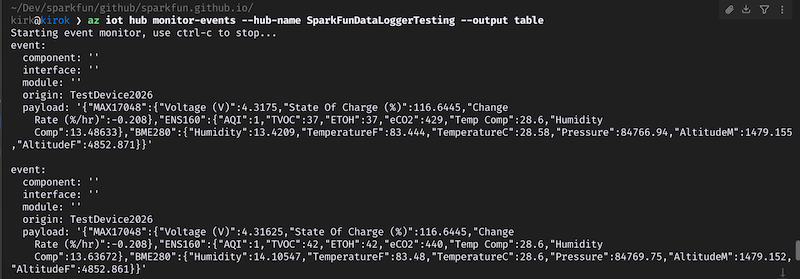
Then to monitor telemetry, enter the following command:
az iot hub monitor-events --hub-name <your-hub> --output table
Where <your-hub> is the name of your Azure IoT Hub.
You can also filter events for a specfic device using this variant of the command:
az iot hub monitor-events --hub-name <your-hub> --device-id <device-id>
Where <device-id> is the ID of the device.